


Brother LC-79Y yellow compatible Fuzion – 1,200 pages
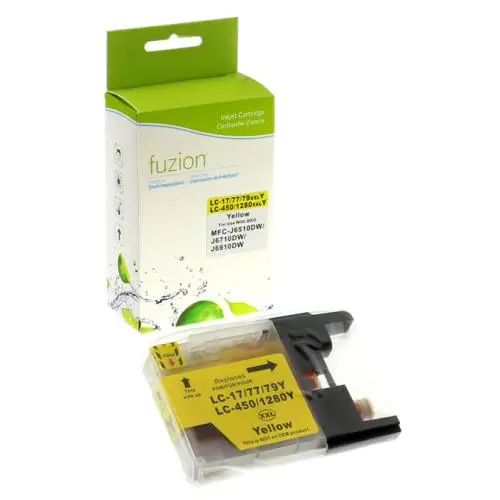


Brother LC-79Y Yellow Compatible Ink Cartridge by Fuzion
The Brother LC-79Y yellow compatible ink cartridge by Fuzion provides an economical solution for everyday colour printing at home or in the office.
Designed as an alternative to the original Brother LC79Y cartridge, it offers an advertised yield of 1,200 pages. Its super-high-yield XXL format helps reduce cartridge replacement frequency and manage printing expenses.
Brother LC-79Y Ink Cartridge Specifications
- Brand: Fuzion
- Product code: IJLC79Y
- Original Brother reference: LC79Y
- Colour: Yellow
- Type: Compatible inkjet cartridge
- Format / Yield: Super-high-yield XXL / 1,200 pages according to ISO/IEC 24711
Advantages of Our Compatible LC-79Y Cartridge
- Savings: An economical alternative to the original Brother yellow ink cartridge.
- Super-high yield: An advertised yield of up to 1,200 pages helps reduce replacements.
- Colour printing: Suitable for documents, charts and images requiring yellow ink.
- Personalized support: André Ink helps customers select cartridges and troubleshoot printing problems.
Compatible Brother Printers for LC-79Y
This yellow cartridge is intended for Brother printers accepting LC79Y ink. Verify your printer model before ordering.
Brother MFC-J5910DW
Brother MFC-J6510DW
Brother MFC-J6710DW
Brother MFC-J6910DW
Page Yield and Printing Costs
The Fuzion LC-79Y yellow cartridge offers an advertised yield of 1,200 pages. Actual page yield varies depending on document content, ink coverage and printing conditions.
Estimate your printing expenses with our real cartridge cost calculator.
Brother Print Head Cleaning and Maintenance
Missing lines, faded prints or missing colours? Visit the Cleaning and Maintenance tab on this product page for print quality checks and cleaning instructions appropriate for your Brother printer.
Order Your Brother LC-79Y Ink Cartridge from André Ink
Choose a Fuzion compatible super-high-yield yellow cartridge and enjoy personalized support from André Ink, with delivery throughout Quebec.
Brother LC79 Ink Cartridge Cleaning and Maintenance
How to Clean the Brother LC79 Print Head
Brother printers using LC79 ink cartridges have a built-in print head cleaning function. This procedure may help correct missing colours, white lines and incomplete printing.
MENU → INK → CLEANING
- Turn on the printer.
- Press Menu.
- Use the navigation arrows to select Ink or Ink Management.
- Press OK.
- Select Cleaning.
- Press OK.
- Choose Black, Color or All, depending on the available options.
- Confirm the cleaning operation.
- Wait until the cleaning cycle is complete.
- Print a quality check sheet.
Applicable models: MFC-J5910DW, MFC-J6510DW, MFC-J6710DW and MFC-J6910DW.
Important: if only black is affected, select Black. If cyan, magenta or yellow is missing, select Color. Cleaning consumes ink.
How to Print a Quality Check Sheet
MENU → INK → TEST PRINT → PRINT QUALITY
- Press Menu.
- Select Ink or Ink Management.
- Press OK.
- Select Test Print.
- Press OK.
- Select Print Quality.
- Press OK.
- Press Color Start.
- The printer prints a quality check sheet.
How to Interpret the Check Sheet
The sheet displays four colour blocks: black, cyan, magenta and yellow.
Each block should display complete lines without white gaps or missing sections.
If Lines Are Missing
- Examine the four printed blocks.
- When the printer asks whether print quality is acceptable, select No if lines are missing.
- Indicate whether black or the colour blocks have defects.
- When the printer offers cleaning, select Yes.
- Wait until cleaning is complete.
- Press Color Start to print another check sheet.
- Compare the results.
Expected result: all four colour blocks should be complete and uniform.
What If a Colour Is Still Missing?
If a colour remains missing after the first cleaning, check that the cartridge is correctly installed.
- Perform the first cleaning cycle.
- Print a quality check sheet.
- If print quality remains poor, repeat the procedure.
- Compare the results after each cleaning cycle.
- If there is no improvement after five cycles, stop cleaning and request technical assistance.
Warning: Brother recommends no more than five cycles during this troubleshooting procedure. Repeated cleaning consumes ink.
Brother LC79 Super High-Yield Ink Cartridges
The Brother LC79 series includes four super high-yield ink cartridges:
- LC79BK: black – approximately 2,400 pages.
- LC79C: cyan – approximately 1,200 pages.
- LC79M: magenta – approximately 1,200 pages.
- LC79Y: yellow – approximately 1,200 pages.
Page yields are approximate and based on ISO/IEC 24711.
What Is the Difference Between LC75 and LC79?
LC79 cartridges provide higher capacity than LC75 cartridges in printers supporting both series.
- LC75BK: approximately 600 pages.
- LC79BK: approximately 2,400 pages.
- LC75C, LC75M and LC75Y: approximately 600 pages each.
- LC79C, LC79M and LC79Y: approximately 1,200 pages each.
The LC79 black cartridge provides approximately four times the page yield of LC75 black. LC79 colour cartridges provide approximately twice the yield of LC75 colour cartridges.
Compatible Brother Printers
- Brother MFC-J5910DW
- Brother MFC-J6510DW
- Brother MFC-J6710DW
- Brother MFC-J6910DW
Important: LC79 cartridges are not compatible with every printer using LC75 cartridges. Always verify your exact printer model.
Why Is One Colour Not Printing?
- Clogged print head nozzles.
- An empty or nearly empty cartridge.
- Incorrect cartridge installation.
- A cartridge recognition problem.
- The printer remaining unused for an extended period.
- A worn or defective print head.
Start by printing a quality check sheet to identify the affected colour.
How to Fix Blurry or Misaligned Printing
Print Head Alignment
MENU → INK → TEST PRINT → ALIGNMENT
- Press Menu.
- Select Ink or Ink Management.
- Press OK.
- Select Test Print.
- Press OK.
- Select Alignment.
- Press OK.
- Press Black Start or Color Start.
- The printer prints an alignment check sheet.
- Examine patterns A, B, C and D.
- For each pattern, select the number from 1 to 9 with the fewest visible vertical stripes.
- Confirm all four selections.
- Press Stop/Exit.
Note: control names may vary by printer model. Follow the displayed instructions.
What If Cleaning Does Not Work?
- Check the ink levels.
- Make sure all cartridges are installed correctly.
- Verify that the printer recognizes the cartridges.
- Identify the affected colour.
- Avoid repeated cleaning without improvement.
- Never touch the print head directly.
- Do not use alcohol or solvents on the print head.
- If the problem persists, request technical assistance.
Frequently Asked Questions
How Do I Clean a Brother LC79 Printer?
Press Menu, select Ink, then Cleaning. Choose Black, Color or All and confirm.
Are LC75 and LC79 Cartridges Interchangeable?
Yes, in the four printers supporting both series: MFC-J5910DW, MFC-J6510DW, MFC-J6710DW and MFC-J6910DW.
Why Is My Brother Printer Not Printing Cyan?
The cyan nozzles may be clogged. The cartridge may also be empty, incorrectly installed or not recognized.
Should I Replace a Cartridge When a Colour Is Missing?
Not necessarily. Clogged print head nozzles can cause the same problem. Start with a print quality check and cleaning.
Why Does My Printer Not Recognize the Cartridge?
Check the cartridge reference, installation and condition. A recognition problem is not necessarily caused by clogged print head nozzles.
Tips to Prevent Print Quality Problems
- Print black and colour documents regularly.
- Avoid leaving the printer unused for several weeks.
- Turn off the printer using its Power button.
- Normally leave the printer plugged in so automatic maintenance can operate.
- Keep replacement cartridges sealed until needed.
- Avoid unnecessary cleaning cycles.
André Ink Tip
A missing colour does not automatically mean your Brother LC79 cartridge is defective. Before replacing it, print a quality check sheet and use your printer's built-in cleaning procedure.
Need Help?
The André Ink team can help identify cartridge, recognition and print quality problems with your Brother printer.
Note: Menu names may vary depending on the printer model and selected language.
- Brand: Fuzion ink
- Product Code: FUZIONBRLC79YL
- MPN: IJLC79Y
- Availability: In Stock
-
12.95$
The more you buy, the more you save
- 4 or more - 10%
Last update on 27.10.2026
Product of the same family

Brother LC-79BK black compatible Fuzion – 2,400 pages
Brother LC-79BK Black Compatible Ink Cartridge by Fuzion The Brother LC-79BK black compatible..
14.95$
Brother LC-79C cyan compatible Fuzion – 1,200 pages
Brother LC-79C Cyan Compatible Ink Cartridge by Fuzion The Brother LC-79C cyan compatible ink..
12.95$
Brother LC-79M magenta compatible Fuzion – 1,200 pages
Brother LC-79M Magenta Compatible Ink Cartridge by Fuzion The Brother LC-79M magenta compatib..
12.95$
Tags: LC79Y, LC-79Y, LC 79Y, LC79YS, LC-79YS, LC 79YS
Our customers are everywhere in Canada... Learn more
