


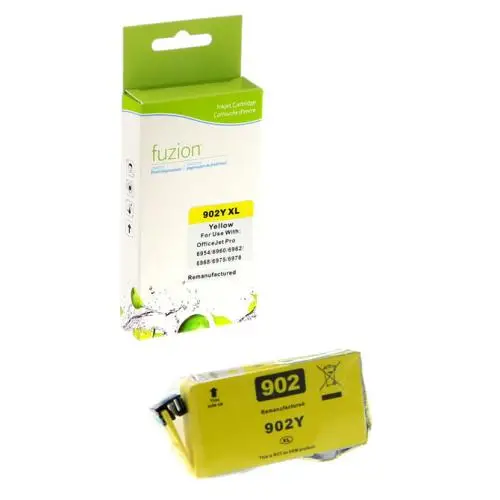
Compatible Ink Jet HP 902XL Yellow Fuzion (HD


Fuzion! Quality that simply costs less.
Article #: CJFHP902XLYL
Origin code: #902XL | T6M10AN | T6L94AN
Type: Ink Jet
Category: New Compatible
Capacity: High Yield
Version1: V4
Genrration2: HD
Ink3: 2,0 picolitres
Print color: Yellow
Nomber of pages4: 825 (0.024$/pages)
Market price: 22.99$
Price: 19.95$
Compatible Inkjet Cartridge HP #902XL Yellow certified ISO/IEC 24711 et 24712, ensures performance and print quality comparable to original cartridges.
Product guaranteed at 100 %.
Free Technical Support.
Compatible printers
| HP - OfficeJet Series |
| OfficeJet 6954 | OfficeJet 6962 | Officejet 6958 |
| HP - OfficeJet Pro Series |
| OfficeJet Pro 6960 | OfficeJet Pro 6968 | OfficeJet Pro 6970 | OfficeJet Pro 6975 | OfficeJet Pro 6978 | OfficeJet Pro 6979 | Officejet Pro 6961 | Officejet Pro 6963 | Officejet Pro 6964 | Officejet Pro 6966 | Officejet Pro 6971 | Officejet Pro 6974 Officejet Pro 6976 |
Reference: HP #902XL, T6M10AN, T6L94AN, T6M10AN#140, IJ902XLY
1Version, 2Generation, 3Ink — Toner, 4Nomber of pages... Learn more⇓
Cleaning and Maintenance for Brother Printers Using LC501 Ink Cartridges
Is your Brother printer using LC501 ink cartridges producing white lines, missing colours, faded output or poor print quality? Cleaning the print head may help restore normal print quality.
This page covers the main maintenance and cleaning steps for Brother printers using Brother LC501 and LC501XL ink cartridges. The exact procedure may vary depending on your printer model.
Important: always follow the procedure for your exact Brother printer model. Menus and cleaning options may differ from one model to another.
When Should You Clean the Brother Print Head?
Print head cleaning may be required if you notice:
- white lines or gaps in printed documents;
- a missing or partially printed colour;
- incorrect colours;
- faded or uneven printing;
- a sudden decrease in print quality;
- missing sections on the print quality check sheet.
Step 1 – Check the Print Quality
Before performing multiple cleaning cycles, use your Brother printer's print quality check function when available.
The check pattern can help determine whether the problem affects black, a specific colour or several colours. It also provides a useful comparison to determine whether cleaning improves print quality.
Step 2 – Clean the Print Head
Brother inkjet printers include a built-in print head cleaning function. Depending on the model, you may be able to clean Black, Colour or All.
Some Brother printers also provide different cleaning strengths. Start with the normal cleaning level when available and use a stronger level only if the print quality problem continues.
Important: print head cleaning uses ink. Avoid performing unnecessary repeated cleaning cycles.
Step 3 – Print Another Quality Check
After cleaning the print head, print another quality check sheet and compare it with the previous result.
If print quality has improved but is still not satisfactory, another cleaning may be required. If repeated cleaning produces no improvement, avoid continuing unnecessary cleaning cycles.
Normal, Strong and Special Cleaning
Depending on the Brother printer model, different cleaning levels may be available, including:
- Normal cleaning: the recommended first step;
- Stronger cleaning: for persistent clogged nozzles;
- Special cleaning: available on selected models for persistent print quality problems.
The availability and exact names of these functions vary by printer model. Always check the instructions for your specific Brother printer before using an advanced cleaning procedure.
Preventive Maintenance for Brother LC501 Printers
To help reduce the risk of dried ink and clogged print head nozzles, use the printer regularly and normally keep it connected to its power source. When turning the printer off, use the printer's Power button rather than disconnecting its power supply.
A Brother printer that remains correctly connected to power can perform the automatic maintenance operations designed for the machine.
Brother LC501 and LC501XL Ink Cartridges
This information applies to Brother printers using the LC501 ink cartridge family, including black and colour cartridges and compatible high-yield versions where supported by the printer.
Before replacing an LC501 cartridge simply because a colour is printing incorrectly, perform the print quality check and the cleaning procedure recommended for your printer model. Poor print quality does not necessarily mean that the ink cartridge is defective.
Still Having Print Quality Problems?
If one or more colours remain missing after completing the recommended cleaning procedures, additional troubleshooting may be required. Avoid dismantling or directly handling the print head unless you know the appropriate procedure.
André Ink can help determine whether the problem is related to the ink cartridge, ink delivery, print head or printer.
Frequently Asked Questions About Brother LC501 Ink Cartridges
Why is my Brother printer not printing one colour?
A missing colour may be related to ink delivery or print head nozzles that require cleaning. Start by performing the Brother print quality check for your printer model.
Should I replace my LC501 cartridge if I see lines when printing?
Not necessarily. First perform a print quality check and the print head cleaning procedure recommended for your printer model.
Can I perform several cleaning cycles in a row?
Cleaning cycles consume ink. Follow the cleaning procedure progressively rather than performing numerous cleaning cycles unnecessarily.
Is the cleaning procedure the same for every printer using LC501 cartridges?
No. Menus, controls and available cleaning levels may vary by printer model. Always follow the instructions for your exact Brother printer model.
Note: Brother, LC501 and LC501XL references are used for identification and compatibility purposes. Procedures and available functions may vary according to the printer model and version.
- Brand: Fuzion ink
- Product Code: IJ902XLY
- MPN: CJFHP902XLYL
- Availability: In Stock
-
19.95$
The more you buy, the more you save
- 4 or more - 10%
Last update on 07.10.2026
Product of the same family
Compatible Ink Jet HP 902XL Magenta Fuzion (HD
Fuzion! Quality that simply costs less. Article #: CJFHP902XLMA Origin code: #902XL | T6M..
19.95$


Compatible Jet d'encre HP 902XL Black Fuzion (HD)
Fuzion! Quality that simply costs less. Article #: CJFHP902XLBK Origin code: #902XL | T6M..
29.95$
Tags: IJ902XLY, T6M10AN, T6L94AN, 902, 902 XL, 902XL, officejet 6962, officejet pro 6968, officejet pro 6978, OfficeJet Pro 6970
Our customers are everywhere in Canada... Learn more
