


Brother LC-501XLK Black Compatible Ink Cartridge – Fuzion


Brother LC-501XLK Black Compatible Ink Cartridge – Fuzion
The Brother LC-501XLK black compatible ink cartridge by Fuzion is an alternative for everyday printing at home or in the office.
It replaces the original Brother LC501XLBKS cartridge and belongs to the XL high-yield range.
Brother LC-501XLK Black Compatible Ink Cartridge Specifications
- Brand: Fuzion
- Cartridge reference: LC-501XLK
- Original Brother reference: LC501XLBKS
- Colour: Black
- Type: Compatible inkjet cartridge
- Format: XL high yield
- OEM reference yield: Up to 500 pages, ISO/IEC 24711
The 500-page yield refers to the original Brother LC501XLBKS cartridge. Actual Fuzion compatible cartridge yield may vary.
Why Choose Our Compatible LC-501XLK Ink Cartridge?
- Cost-conscious alternative: A compatible replacement option for the original Brother cartridge.
- XL format: Part of the high-yield cartridge range.
- Everyday printing: Suitable for home and office printing needs.
- Personalized support: André Ink helps customers select and use their printing supplies.
Compatible Brother Printers – LC-501XL Series
According to Brother Canada, the original LC501XLBKS cartridge is designed for the following printers. Confirm compatibility of the Fuzion version before ordering.
Brother MFC-J1260DW
Brother MFC-J1360DW
Brother MFC-J1410DW
Page Yield and Printing Costs
The original Brother LC501XLBKS cartridge provides an advertised yield of up to 500 pages, measured according to ISO/IEC 24711. Actual page yield depends on printed documents, ink coverage and usage conditions.
When comparing printing supplies, consider the cost per printed page rather than cartridge price alone.
Brother Print Head Cleaning and Maintenance
Missing lines, faded prints or a missing colour? Open the Cleaning and Maintenance tab on this product page for print quality checks and cleaning guidance for your Brother printer.
Order Your Brother LC-501XLK Ink Cartridge from André Ink
Choose André Ink for personalized service and assistance with compatible ink cartridges. Our team is available to help before and after your purchase.
Brother LC501 and LC501XL Print Head Cleaning
Is your Brother printer using LC501 or LC501XL ink cartridges producing lines, missing colours or poor print quality? Follow this procedure to check print quality and clean the print head before unnecessarily replacing an ink cartridge.
Quick Procedure – Brother LC501 / LC501XL
To check print quality on touchscreen models such as the MFC-J1410DW:
INK → IMPROVE PRINT QUALITY → CHECK PRINT QUALITY
1. Print the Quality Check Sheet
Select Check Print Quality, followed by Start. The printer prints a sheet that allows you to check all four colours.
Select Check Print Quality, followed by Start. The printer prints a sheet that allows you to check all four colours.
2. Check the Four Colour Blocks
Examine black, cyan, magenta and yellow. The lines in each block should be complete and clearly visible.
Examine black, cyan, magenta and yellow. The lines in each block should be complete and clearly visible.
3. Are Lines Missing?
When the printer asks you to check print quality, indicate that lines are missing. The printer will then guide you through identifying which colours require cleaning.
When the printer asks you to check print quality, indicate that lines are missing. The printer will then guide you through identifying which colours require cleaning.
4. Identify the Printed Result
For each requested colour, select the pattern that most closely matches the printed result.
For each requested colour, select the pattern that most closely matches the printed result.
5. Start Cleaning
If the printer determines that cleaning is required, select Start. The print head is cleaned automatically.
If the printer determines that cleaning is required, select Start. The print head is cleaned automatically.
6. Print Another Quality Check
After cleaning, print another Print Quality Check Sheet and inspect the four colour blocks again.
After cleaning, print another Print Quality Check Sheet and inspect the four colour blocks again.
Manual Print Head Cleaning
On models offering multiple cleaning levels, you can also start print head cleaning directly.
INK → PRINT HEAD CLEANING
1. Select the colours to clean:
Black only → Color only → All
2. Select the cleaning level:
Normal → Strong → Strongest
3. Select Start.
The printer automatically performs the selected cleaning procedure.
Black only → Color only → All
2. Select the cleaning level:
Normal → Strong → Strongest
3. Select Start.
The printer automatically performs the selected cleaning procedure.
Important: menus and available cleaning levels may vary depending on your Brother printer model. Always begin with the lowest cleaning level and check the result before using a stronger cleaning level.
LC501 or LC501XL – What's the Difference?
Brother officially offers this cartridge family in both LC501 Standard Yield and LC501XL High Yield versions.
LC501 Standard Yield
Black: up to approximately 250 pages
Cyan, magenta and yellow: up to approximately 200 pages per cartridge
LC501XL High Yield
Black, cyan, magenta and yellow: up to approximately 500 pages per cartridge
Black: up to approximately 250 pages
Cyan, magenta and yellow: up to approximately 200 pages per cartridge
LC501XL High Yield
Black, cyan, magenta and yellow: up to approximately 500 pages per cartridge
Page yields are approximate and are determined according to Brother's applicable yield measurement method.
LC501 series cartridges are used with Brother Work Smart printers including the MFC-J1260DW, MFC-J1360DW and MFC-J1410DW.
Still Seeing Lines or Missing Colours?
If print quality remains poor after the first cleaning, run another Print Quality Check.
Increase the cleaning level gradually.
When your model offers multiple cleaning levels, begin with Normal. If the problem continues, try Strong, followed by Strongest only when necessary.
When your model offers multiple cleaning levels, begin with Normal. If the problem continues, try Strong, followed by Strongest only when necessary.
Warning: every print head cleaning cycle consumes ink. Avoid unnecessarily repeating cleaning cycles when there is no improvement.
Before Replacing Your LC501 or LC501XL Ink Cartridge
A missing colour, horizontal lines, incomplete text or blank areas do not automatically mean that your LC501 or LC501XL cartridge is defective.
Print head nozzles may be clogged. The Print Quality Check can quickly help determine whether the problem affects black, cyan, magenta or yellow.
Also verify that the ink cartridges are installed correctly before concluding that a cartridge or the print head is defective.
When Should You Clean the Print Head?
- Horizontal lines appear in text or images;
- one colour is completely missing;
- one colour prints only partially;
- lines are missing from the Print Quality Check Sheet;
- text or portions of the page remain blank;
- colours appear faded or uneven;
- print quality suddenly decreases.
Blurred Text or Misaligned Printing?
If all four colours are present but text appears blurred, doubled or incorrectly aligned, the problem may be related to print alignment rather than clogged print head nozzles.
Use your printer's Alignment Check function and follow the instructions displayed on the screen.
Important Maintenance Tip
Avoid regularly unplugging your Brother printer.
When turning the printer off, use its Power button rather than disconnecting the power supply. This allows the printer to retain minimal power and perform periodic print head cleaning when necessary.
When turning the printer off, use its Power button rather than disconnecting the power supply. This allows the printer to retain minimal power and perform periodic print head cleaning when necessary.
Using your printer regularly can also help reduce the risk of dried ink and clogged print head nozzles.
What You Should Avoid
Do not touch the print head directly. Improper handling may cause permanent damage.
Do not apply alcohol, solvents or other cleaning products directly to the printer unless you know the appropriate procedure.
Always start with the printer's built-in Print Quality Check and cleaning functions.
Still Having Problems?
If a colour remains completely missing or print quality does not improve after several cleaning cycles, avoid continuing unnecessarily.
The problem may be related to the LC501 / LC501XL cartridge, ink delivery system, print head or printer.
Contact André Ink before unnecessarily replacing your ink cartridges or printer. We can help identify the cause of the problem.
Frequently Asked Questions – Brother LC501 / LC501XL
How do I clean the print head on a Brother printer using LC501?
On the MFC-J1410DW, select Ink → Print Head Cleaning, choose black, colour or all colours, and then select the cleaning level.
Is there an LC501XL cartridge?
Yes. Brother offers standard-yield LC501 cartridges and high-yield LC501XL cartridges.
What is the difference between LC501 and LC501XL?
Standard LC501 cartridges provide up to approximately 250 pages for black and 200 pages for each colour. LC501XL cartridges provide up to approximately 500 pages per cartridge.
Why is one LC501 colour not printing?
The cartridge may be involved, but incorrect cartridge installation, clogged print head nozzles or an ink delivery problem can also prevent a colour from printing correctly. Check the cartridges and run the Print Quality Check first.
Which cleaning level should I use?
Begin with Normal. If print quality does not improve sufficiently and your printer offers additional levels, gradually move to Strong and then Strongest.
Tips to Help Prevent Print Quality Problems
A few good habits can help extend the life of your print head
- Use your printer regularly.
An inkjet printer that remains unused for a long period is more likely to experience dried ink and clogged print head nozzles. - Normally keep the printer connected to power.
Turn it off using its Power button rather than unplugging it directly so the printer can perform its periodic maintenance operations. - Do not perform unnecessary cleaning cycles.
Every cleaning cycle consumes ink. Check the result before starting another cleaning. - Start with the Normal cleaning level.
Use Strong or Strongest only when Normal cleaning has not sufficiently improved print quality. - Check the result after each cleaning.
If print quality gradually improves, continue when necessary. If there is no improvement after several cleaning cycles, stop and have the problem diagnosed. - Do not immediately assume the cartridge is defective.
A missing colour may also be caused by clogged nozzles, an incorrectly installed cartridge or an ink delivery problem. - Avoid touching the print head.
Do not dismantle the print head or apply solvents or cleaning products directly to the printer unless you know the appropriate procedure. - When in doubt, stop cleaning.
Proper diagnosis can prevent unnecessary ink consumption or replacement of an ink cartridge or printer.
André Ink Tip:
Before replacing an LC501 or LC501XL cartridge because one colour is no longer printing correctly, always print the Print Quality Check Sheet. It can quickly show which colour has missing lines or clogged print head nozzles.
Before replacing an LC501 or LC501XL cartridge because one colour is no longer printing correctly, always print the Print Quality Check Sheet. It can quickly show which colour has missing lines or clogged print head nozzles.
Need Help?
If cleaning does not solve the problem, contact André Ink. We can help determine whether the problem is related to the ink cartridge, ink delivery system, print head or printer before you unnecessarily replace equipment.
If cleaning does not solve the problem, contact André Ink. We can help determine whether the problem is related to the ink cartridge, ink delivery system, print head or printer before you unnecessarily replace equipment.
Note: menus and procedures may vary depending on the Brother printer model. Brother, LC501 and LC501XL trademarks and references are used for identification and compatibility purposes.
- Brand: Fuzion ink
- Product Code: IJLC501XLK
- MPN: FUZIONBRLC501XLBK
- Availability: In Stock
-
29.95$
- 4 or more - 10%
Last update on 08.10.2026
Product of the same family
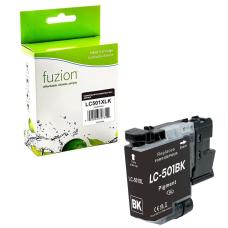
Brother LC-501XLK Black Compatible Ink Cartridge – Fuzion
Brother LC-501XLK Black Compatible Ink Cartridge – Fuzion T..
29.95$
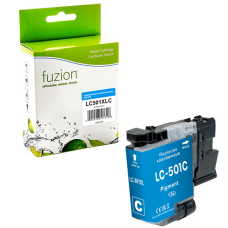
Compatible Brother LC-501XLC Cyan Fuzion
Fuzion! Quality that simply costs less. Article #:FUZIONBRLC501XLCY Origin code: LC501XLC..
20.95$
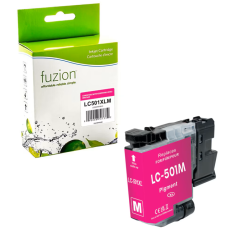
Compatible Brother LC-501XLM Magenta Fuzion
Fuzion! Quality that simply costs less. Article #:FUZIONBRLC501XLMA Origin code: LC501XLM..
20.95$

Compatible Brother LC-501XLY Yellow Fuzion
Fuzion! Quality that simply costs less. Article #: FUZIONBRLC501XLYL Origin code: LC501XL..
20.95$
Tags: LC501XLK, LC-501XLK, LC 501XLK, LC501XLBKS, LC-501XLBKS, LC 501XLBKS
Our customers are everywhere in Canada... Learn more
