


Compatible Brother LC-3013 Yellow (HD)
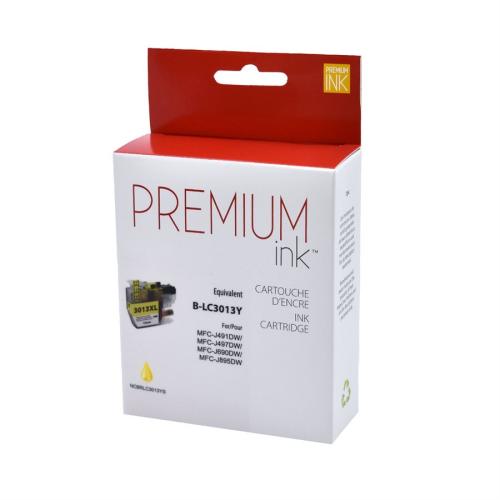

To print your proofs (Premium Ink) the best quality / price ratio of all economical cartridges sold on the market.
Article #: NCBRLC3013YS
Origin code: LC3013Y
Type: Ink Jet
Category: New Compatible
Capacity: High Yield
Version1: V2
Genrration2: HD
Ink3: 1,9 picolitres
Print color: Yellow
Nomber of pages4: 400 (0.043$/pages)
Market price: 17.99$
Price: 16.95$
Inkjet Cartridge Brother LC-3013 Yellow Compatible certified ISO/IEC 24711 et 24712, ensures performance and print quality comparable to original cartridges.
Product guaranteed at 100 %.
Free Technical Support.
Compatible printers
| Brother – Mfc Series |
| MFC-J491DW | MFC-J497DW | MFC-J690DW | MFC-J895DW |
Reference: Brother LC3013Y, LC-3013Y, LC 30313 Y, LC 3013BY, CBRO-LC3013Y-PT
1Version, 2Generation, 3Ink — Toner, 4Nomber of pages... Learn more⇓
Brother LC3013 Print Head Cleaning
Is your Brother printer producing missing colours, white lines or faded prints? The print head nozzles may be clogged. Follow this guide to check print quality and clean the print head.
Print Head Cleaning Procedure – Brother LC3013
MFC-J690DW and MFC-J895DW
On the touchscreen:
SETTINGS → MAINTENANCE → IMPROVE PRINT QUALITY → CHECK PRINT QUALITY
- Press Settings.
- Select Maintenance.
- Choose Improve Print Quality.
- Select Check Print Quality.
- Press Start.
- Examine the black, cyan, magenta and yellow blocks.
- If lines are missing, select Yes.
- For each colour, choose the numbered pattern from 1 to 4 that most closely matches the printed result.
- If cleaning is recommended, press Start.
- Print another quality check sheet after cleaning.
MFC-J491DW and MFC-J497DW
Using the control panel:
SETTINGS → GENERAL SETUP → MAINTENANCE → IMPR. PRINTQUALITY → IMPR. PRINTQUALITY
- Press Settings.
- Use the arrow buttons to select General Setup, then press OK.
- Select Maintenance, then press OK.
- Select Impr. PrintQuality twice, confirming each selection with OK.
- Follow the printer prompts to print the quality check sheet.
- Examine all four colour blocks.
- If lines are missing, select Yes.
- For each colour, choose the numbered pattern from 1 to 4 that matches the printed result.
- Start cleaning when prompted.
- Print another quality check sheet.
Expected result: all four colour blocks should contain complete, consistent lines.
Manual Print Head Cleaning
MFC-J690DW and MFC-J895DW:
SETTINGS → MAINTENANCE → PRINT HEAD CLEANING
MFC-J491DW and MFC-J497DW:
SETTINGS → GENERAL SETUP → MAINTENANCE → PRINT HEAD CLEANING
- Select Black only, Color only or All.
- Choose Normal, Strong or Strongest.
- Start with Normal.
- Run the cleaning procedure and wait for it to finish.
- Print another quality check sheet.
Use a stronger cleaning level only when necessary.
Important: Print head cleaning consumes ink. Avoid repeated cleaning when print quality does not improve. Check the affected cartridge before continuing.
Brother LC3013 Ink Cartridges
- LC3013BK: black – approximately 400 pages.
- LC3013C: cyan – approximately 400 pages.
- LC3013M: magenta – approximately 400 pages.
- LC3013Y: yellow – approximately 400 pages.
Page yields are approximate and based on ISO/IEC 24711. Actual yield depends on printing conditions.
Compatible Brother Printers
- Brother MFC-J491DW
- Brother MFC-J497DW
- Brother MFC-J690DW
- Brother MFC-J895DW
Why Is One Colour Not Printing?
Missing colours may be caused by clogged print head nozzles, an empty cartridge, an incorrectly installed cartridge or a defective cartridge.
If cyan is missing, for example, check the LC3013C cartridge and print a quality check sheet.
How to Fix Blurry or Misaligned Printing
If text appears blurry or vertical lines look misaligned, the printer may require print alignment.
MFC-J690DW and MFC-J895DW:
INK → IMPROVE PRINT QUALITY → ALIGNMENT
MFC-J491DW and MFC-J497DW:SETTINGS → GENERAL SETUP → MAINTENANCE → IMPR. PRINTQUALITY → ALIGNMENT
- Print the alignment check sheet.
- For each pattern, select the number with the fewest visible vertical stripes.
- Confirm the selections requested by the printer.
What If Cleaning Does Not Work?
- Check the ink levels.
- Make sure the cartridges are installed correctly.
- Identify which colour is affected.
- Avoid unnecessary repeated cleaning.
- Never touch the print head directly.
- Do not apply solvents to the print head.
Frequently Asked Questions
Why is my Brother printer not printing cyan?
The cyan nozzles may be clogged or the LC3013C cartridge may be empty or incorrectly installed. Print a quality check sheet before replacing the cartridge.
What is the difference between Normal and Strong cleaning?
Strong cleaning performs a more intensive cleaning operation. Start with Normal and use a stronger level only when needed.
Should I replace my LC3013 cartridge if a colour is missing?
Not necessarily. Cleaning may restore print quality. Also check the cartridge installation and ink level.
Tips to Help Prevent Print Quality Problems
- Print black and colour pages regularly.
- Avoid leaving the printer unused for long periods.
- Turn off the printer using its Power button.
- Normally leave the printer plugged in so automatic maintenance can operate.
- Keep replacement cartridges sealed until needed.
- Avoid unnecessary cleaning cycles that consume ink.
André Ink Tip
A missing colour does not always mean the ink cartridge needs replacement. Start with a print quality check and use your Brother printer's built-in cleaning procedure. This may help avoid unnecessary cartridge replacement.
Need Help?
The André Ink team can help identify cartridge, print head and print quality problems with your Brother printer.
Note: Menu names may vary depending on the printer model and selected language.
```
- Brand: Premium Ink
- Product Code: NCBRLC3013YS
- MPN: NCBRLC3013YS
- Availability: In Stock
-
16.95$
The more you buy, the more you save
- 4 or more - 10%
Last update on 08.10.2026
Product of the same family
Compatible Brother LC-3013 Cyan (HD)
To print your proofs (Premium Ink) the best quality / price ratio of all economical cartridges sold ..
16.95$
Compatible Brother LC-3013 Magenta (HD)
To print your proofs (Premium Ink) the best quality / price ratio of all economical cartridges sold ..
16.95$

Compatible Brother LC-3013 Black (HD)
To print your proofs (Premium Ink) the best quality / price ratio of all economical cartridges sold ..
18.95$
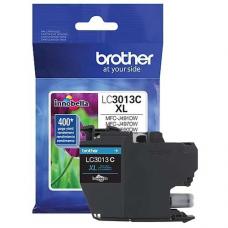


Genuine Brother LC-3013 Cyan
Article #: OJBRLC3013C Origin code: LC3013C Type: Ink Jet Category: Genuine Capacity: ..
24.99$
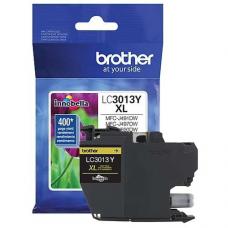
Genuine Brother LC-3013 Yellow
Article #: OJBRLC3013Y Origin code: LC3013Y Type: Ink Jet Category: Genuine Capacity: ..
24.99$
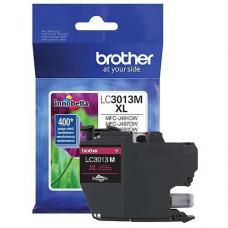

Genuine Brother LC-3013 Magenta
Article #: OLBRLC3013M Origin code: LC3013M Type: Ink Jet Category: Genuine Capacity: ..
24.99$
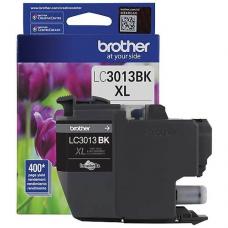
Genuine Brother LC-3013 Black
Article #: OJBRLC3013BK Origin code: LC3013BK Type: Ink Jet Category: Genuine Capacity:&nbs..
39.99$
Tags: LC3013Y, LC 30313Y, LC-3013Y, MFCJ491DW, MFCJ497DW, MFCJ690DW, MFCJ895DW, MFC-J491DW, MFC-J497DW, MFC-J690DW, MFC-J895DW
Our customers are everywhere in Canada... Learn more
