


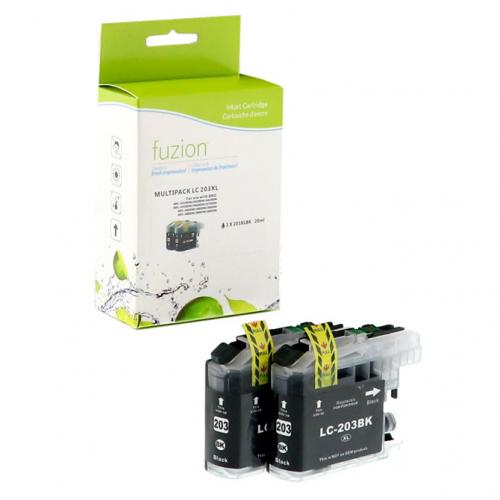
Compatible Brother LC203 XL 2 X Black Fuzion (HD)


Fuzion! Quality that simply costs less.
Article #: FUZIONBRLC203BKX2
Origin code: LC203PKS
Type: Ink Jet
Category: New Compatible
Capacity: High Yield
Version1: V5
Genrration2: HD
Ink3: 1,9 picolitres
Print color: Black
Nomber of pages4: 2X550 (0.025$/pages)
Market price: 35.99$
Price: 27.95$
Inkjet Cartridge Brother LC203 Black Compatible certified ISO/IEC 24711 et 24712, ensures performance and print quality comparable to original cartridges.
Product guaranteed at 100 %.
Free Technical Support.
Compatible printers
| Brother – Mfc Series |
| MFC-J4320DW | MFC-J4420DW | MFC-J460DW | MFC-J4620DW | MFC-J480DW | MFC-J485DW | MFC-J5520DW | MFC-J5620DW | MFC-J5720DW | MFC-J680DW | MFC-J880DW | MFC-J885DW |
Reference: Brother LC-203, Brother LC-203 compatible printers, LC-203k, LC203k, LC-203k, LC203bk, LC-203 Black, LC203 black, LC203 ink, LC2032PKS
1Version, 2Generation, 3Ink — Toner, 4Nomber of pages... Learn more⇓
Brother LC201 and LC203 Print Head Cleaning
Is your Brother printer using LC201 or LC203 ink cartridges producing lines, missing colours or poor print quality? Follow this procedure to check print quality and clean the print head before unnecessarily replacing an ink cartridge.
Quick Procedure – Brother LC201 / LC203
SETTINGS → INK/MAINTENANCE → IMPROVE PRINT QUALITY → IMPROVE PRINT QUALITY
1. Press Settings
Open your Brother printer settings.
Open your Brother printer settings.
2. Select Ink/Maintenance
Use the arrow keys to select Ink/Maintenance, then press OK.
Use the arrow keys to select Ink/Maintenance, then press OK.
3. Select Improve Print Quality
Select the print quality function and then select the Print Quality Check again.
Select the print quality function and then select the Print Quality Check again.
4. Print the Quality Check Sheet
Press Color Start. The printer prints the Print Quality Check Sheet.
Press Color Start. The printer prints the Print Quality Check Sheet.
5. Check the Four Colour Blocks
Examine black, cyan, magenta and yellow. The short lines should be complete and clearly visible.
Examine black, cyan, magenta and yellow. The short lines should be complete and clearly visible.
6. Are Lines Missing?
If lines are missing, select Yes when prompted.
If lines are missing, select Yes when prompted.
7. Identify the Printed Result
For each colour, select pattern 1, 2, 3 or 4 that most closely matches the printed result.
For each colour, select pattern 1, 2, 3 or 4 that most closely matches the printed result.
8. Start Cleaning
If cleaning is required, press OK. The printer automatically cleans the print head.
If cleaning is required, press OK. The printer automatically cleans the print head.
9. Print Another Quality Check
After cleaning, print another check sheet and inspect all four colour blocks again.
After cleaning, print another check sheet and inspect all four colour blocks again.
Important: exact menu wording may vary slightly depending on the Brother printer model.
LC201 or LC203 – What's the Difference?
Brother offers this cartridge family in LC201 Standard Yield and LC203 High Yield versions.
Brother LC201 – Standard Yield
LC201BK – Black
LC201C – Cyan
LC201M – Magenta
LC201Y – Yellow
Yield: approximately 260 pages per cartridge
Brother LC203 – High Yield
LC203BK – Black
LC203C – Cyan
LC203M – Magenta
LC203Y – Yellow
Yield: approximately 550 pages per cartridge
LC201BK – Black
LC201C – Cyan
LC201M – Magenta
LC201Y – Yellow
Yield: approximately 260 pages per cartridge
Brother LC203 – High Yield
LC203BK – Black
LC203C – Cyan
LC203M – Magenta
LC203Y – Yellow
Yield: approximately 550 pages per cartridge
Approximate yields are declared in accordance with ISO/IEC 24711.
Tip: when a printer supports both LC201 and LC203, LC203 provides more than twice the approximate yield of LC201. Always verify exact printer compatibility before ordering.
Before Replacing Your LC201 or LC203
A missing colour does not automatically mean that the cartridge is empty or defective.
An incorrectly installed cartridge or clogged print head nozzles can also cause one or more colours to disappear.
Check cartridge installation and run the Print Quality Check before replacing an LC201 or LC203 cartridge.
When Should You Clean the Print Head?
- Horizontal lines appear in text or images;
- black, cyan, magenta or yellow is missing;
- one colour prints only partially;
- lines are missing from the Print Quality Check;
- text or portions of the page remain blank;
- colours appear faded or uneven;
- print quality suddenly decreases.
Blurred Text or Misaligned Printing?
If all four colours are present but text appears blurred or crooked, the problem may be related to print alignment rather than clogged nozzles.
SETTINGS → INK/MAINTENANCE → IMPROVE PRINT QUALITY → ALIGNMENT
Print the Alignment Check Sheet and select the sample with the fewest visible vertical stripes for each pattern.
Still Having Problems After Cleaning?
If the first cleaning improves print quality without completely solving the problem, run another quality check before cleaning again.
Warning: print head cleaning consumes ink. If there is no improvement, avoid unnecessary repeated cleaning cycles.
If a colour remains missing, verify that the affected cartridge is installed correctly. The cartridge, ink delivery system or print head may require diagnosis.
Important Maintenance Tip
Avoid leaving your Brother printer unplugged for extended periods.
Brother printers periodically clean the print head automatically to help prevent ink from drying. When the printer is unplugged, it cannot perform these periodic maintenance operations.
Brother printers periodically clean the print head automatically to help prevent ink from drying. When the printer is unplugged, it cannot perform these periodic maintenance operations.
Normally use the printer's Power button to turn it off and leave it connected to power.
What You Should Avoid
Do not touch the print head directly.
Do not apply alcohol, solvents or other cleaning products directly to the printer unless you know the appropriate procedure.
Always start with the printer's built-in Print Quality Check and cleaning functions.
Still Having Problems?
If a colour remains completely missing or print quality does not improve after cleaning, avoid continuing unnecessarily.
The problem may be related to the LC201 / LC203 cartridge, ink delivery system, print head or printer.
Contact André Ink before unnecessarily replacing your ink cartridges or printer. We can help identify the cause of the problem.
Frequently Asked Questions – Brother LC201 / LC203
What is the difference between LC201 and LC203?
LC201 is the standard-yield cartridge at approximately 260 pages, while LC203 is the high-yield version at approximately 550 pages.
Which colours are available?
Both series are available in black, cyan, magenta and yellow: LC201BK/C/M/Y and LC203BK/C/M/Y.
Can I replace an LC201 with an LC203?
Yes, when your Brother printer is designed to support both capacities. Always verify exact compatibility before ordering.
Why is one colour no longer printing?
The cartridge may be involved, but it may also be incorrectly installed or the print head nozzles may be clogged. Run the Print Quality Check first.
Why is the text blurry when all colours are present?
The problem may be print alignment. Use the Alignment function in the Improve Print Quality menu.
Tips to Help Prevent Print Quality Problems
- Use your printer regularly.
Long periods without printing can increase the risk of dried ink and clogged nozzles. - Normally keep the printer connected to power.
This allows it to perform periodic maintenance automatically. - Use the Power button.
Avoid regularly disconnecting the printer directly from its power source. - Do not perform unnecessary cleaning cycles.
Every cleaning cycle consumes ink. - Check cartridge installation.
A missing colour may sometimes be caused by an incorrectly installed cartridge. - Do not immediately assume the cartridge is defective.
Clogged nozzles can also cause a missing colour. - Avoid touching the print head.
Start with the printer's built-in maintenance functions. - When in doubt, stop cleaning.
Proper diagnosis can prevent unnecessary ink consumption or replacement of a cartridge or printer.
André Ink Tip:
Before replacing an LC201 or LC203 because one colour is no longer printing correctly, always print the Print Quality Check Sheet. It can quickly determine whether the problem affects black, cyan, magenta or yellow.
Before replacing an LC201 or LC203 because one colour is no longer printing correctly, always print the Print Quality Check Sheet. It can quickly determine whether the problem affects black, cyan, magenta or yellow.
Need Help?
If cleaning does not solve the problem, contact André Ink. We can help determine whether the problem is related to the ink cartridge, ink delivery system, print head or printer before you unnecessarily replace equipment.
If cleaning does not solve the problem, contact André Ink. We can help determine whether the problem is related to the ink cartridge, ink delivery system, print head or printer before you unnecessarily replace equipment.
Note: menus, procedures and compatibility may vary depending on the Brother printer model. Brother, LC201 and LC203 trademarks and references are used for identification and compatibility purposes.
- Brand: Fuzion ink
- Product Code: IJLC203XL2PKS
- MPN: FUZIONBRLC203BKX2
- Availability: In Stock
-
27.95$
The more you buy, the more you save
- 4 or more - 10%
Last update on 07.10.2026
Product of the same family

Compatible Brother LC203 XL Cyan Fuzion (HD)
Fuzion! Quality that simply costs less. Article #: FUZIONBRLC203CY Origin code: LC203C T..
12.95$
Compatible Brother LC203 XL Yellow Fuzion (HD)
Fuzion! Quality that simply costs less. Article #:FUZIONBRLC203YL Origin code: LC203Y Ty..
12.95$
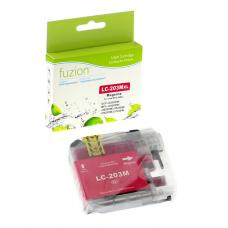
Compatible Brother LC203XL Magenta Fuzion (HD)
Fuzion! Quality that simply costs less. Article #: FUZIONBRLC203MA Origin code: LC203M T..
12.95$
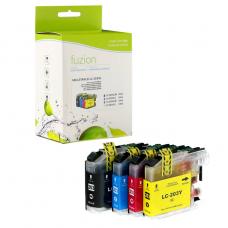
Compatible Brother LC203 Set of 4 colors Fuzion (HD)
Fuzion! Quality that simply costs less. Brother LC203 – Jet d'Encre Set of 4 col..
47.95$
Tags: LC-203BK, LC-203, LC203, LC-203BK, LC203BK, LC 203, LC203, MFC-J4320DW, MFC-J4420DW, MFC-J460DW, MFC-J4620DW, MFC-J480DW, MFC-J485DW, MFC-J5520DW, MFC-J5620DW, MFC-J5720DW, MFC-J680DW, MFC-J880DW, MFC-J885DW
Our customers are everywhere in Canada... Learn more
